Available on Steam $5.99 USD
Crosshair EDGE Custom Crosshair Overlay for Windows Games
A premium custom crosshair overlay for Windows. Build layered crosshairs, track ammo with the built-in Bullet Counter, switch presets per game, and share designs through Steam Workshop with Steam Cloud sync. Overlay-only design — no game injection, no game memory access, no game file modification.
Prefer a free, lightweight option? Try Crosshair EDGE Lite →
Watch the Trailer
See Crosshair EDGE in action — custom crosshairs, bullet counter, and more.

Core Features
Custom Crosshair
Design your perfect crosshair with up to 9 independent layers. Mix 5 shapes (Plus, Ring, Square, Triangle, Dot), full color control, segment toggles, and 8 precision sliders — gap, length, thickness, outline, rotation, opacity, blur, and scale.
Bullet Counter
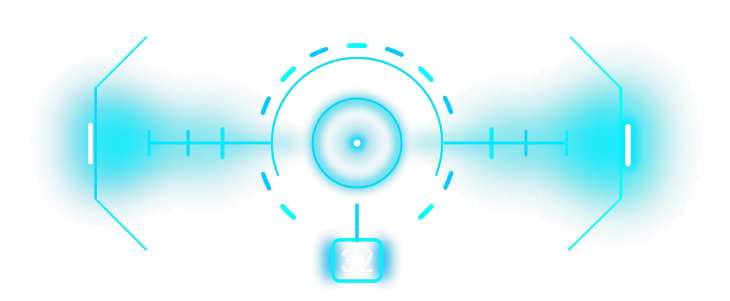
Timer-based ammo counter built into your crosshair overlay. Three modes: Numeric digits, Circular ring of ticks, or Linear tick row. Configurable shot/reload delays, magazine size, colors, and a per-preset reload hotkey.
Right-Click Action
Hold right mouse button to either hide the crosshair or switch to a different preset on the fly — perfect for ADS, scope use, or swapping between hipfire and zoom reticles. Configurable per preset.
Steam Workshop
Browse, download, and share crosshair presets with the community. Filter by Popular, Top Rated, or Recent. Vote, subscribe, and upload your own designs with custom preview images.
Browse the Workshop →
Desktop Organizer
Pin files, folders, and shortcuts to slide-out edge panels (Top, Left, Right). Drag items from your desktop to clean it up while keeping everything one click away — fully customizable icons, labels, colors, and opacity.
Works with Popular Windows Games
Crosshair EDGE is an overlay-only custom crosshair app designed to work with virtually all Windows games. Use it as a custom crosshair for PC or as a custom crosshair overlay in any of the games below. It is especially reliable in borderless fullscreen, windowed fullscreen, and normal windowed mode, while exclusive fullscreen can still work depending on the game. New to overlays? Start with the crosshair guide.
Players can use Crosshair EDGE across shooters, tactical FPS games, battle royale games, survival games, sandbox games, horror games, racing games, and many other PC games where a clean custom aiming point or center-screen reference is useful.
- Counter-Strike 2
- Valorant
- Fortnite
- Apex Legends
- Call of Duty
- Warzone
- Rainbow Six Siege
- PUBG: Battlegrounds
- The Finals
- Escape from Tarkov
- ARC Raiders
- Roblox
- Minecraft
- Grand Theft Auto V
- GTA Online
- Rust
- DayZ
- ARK: Survival Ascended
- Subnautica
- Subnautica 2
- Battlefield
- Overwatch 2
- Team Fortress 2
- Destiny 2
- Warframe
- Halo Infinite
- Palworld
- Unturned
- Garry's Mod
- Left 4 Dead 2
These are examples of popular Windows games and genres where players may want a custom crosshair overlay. Crosshair EDGE is not affiliated with, endorsed by, or officially connected to these games, publishers, or platforms. Game names are trademarks of their respective owners.
Complete Customization Control
20 Preset Slots
Save up to 20 complete crosshair configurations. Press F3 to cycle through them instantly. Each preset stores all layer settings, positions, colors, and per-preset options like Right-Click Hide.
Full Color Control
Separate color pickers for crosshair and outline. HSV color model with 2D hue-saturation selector and dedicated hue slider for precise color matching.
Segment Toggles
Each shape has individual segment controls. Toggle segments on or off, and right-click to switch between rounded and flat segment ends for pixel-perfect customization.
Position Control
Move the current layer with W A S D while the settings menu is open. Move all crosshair layers together with ↑ ↓ ← → arrow keys, even during gameplay. Movement speed accelerates while held.
Global Scale Multiplier
Right-click the Scale slider to activate orange global mode. Resize all layers and shapes together from 0.25× to 2.5× while maintaining proportions.
Export & Import
Share your entire preset collection with others. Export all 20 presets, hotkey bindings, and settings to a file, or import someone else's configuration.
Bullet Counter — Three Modes
Track your ammo without taking your eyes off the action. Choose the display style that fits your game and crosshair.
Numeric
Clean digital display with a rounded frame. Shows current ammo count (e.g. "30", "--9", "---" when empty). Fixed-width digits for stable rendering.
Circular
A ring of ticks around your crosshair — one tick per bullet, up to 100. As you fire, ticks fade out, giving you a glanceable visual indicator.
Linear
Horizontal row of ticks with configurable rotation. One tick per bullet, up to 100. Rotate from 0° to 360° to position it anywhere around your crosshair.
Configurable shot delay, reload delay, magazine size (up to 999), per-mode colors, opacity, and scale. Works through pure passive key polling — no hooks, no injection, completely safe.
Seamless Steam Integration
Workshop Community
Discover community-made crosshair presets in a growing Steam Workshop library. Browse by Popular, Top Rated, Recent, or view your Subscribed items and uploads. Vote and subscribe to support your favorite creators.
- One-click download and apply
- Top Creators leaderboard
- Upload with custom preview crop
- Update or delete your uploads anytime
Cloud Sync
Your crosshair presets, hotkeys, and settings automatically sync across all your computers via Steam Cloud. Encrypted with AES-256 for privacy and security.
- Log in anywhere and your crosshairs follow
- Automatic background synchronization
- Secure encryption (PBKDF2 + AES-GCM)
- Legacy migration support
Desktop Organizer — Bonus Feature
Pin your favorite files, folders, and shortcuts to customizable edge panels that slide in from the top, left, or right of your screen.
Drag & Drop
Drag items from Explorer or your Desktop directly into any panel. Reorder items by dragging within a panel. Everything persists between sessions.
Desktop Cleanup
When you drag a file from your Desktop into a panel, Crosshair EDGE can hide it from your Desktop using the Hidden attribute. Remove it from the panel and it reappears automatically.
Visual Customization
Configure icon size (32/48/96px), text labels (off or 1-3 lines), label colors, panel opacity, frame thickness, blur effects, and tab auto-hide timers.
Quick Access
Double-click items to open them. Right-click for context menus (Open, Open Location, Remove). Use Ctrl+1, Ctrl+2, Ctrl+3 to toggle panels.
Technical Excellence
Safe Overlay
Pure screen overlay — no code injection, no memory reading, no game file modification. Uses only Windows APIs to manage its own overlay window.
Auto Resolution Scaling
Automatically detects monitor resolution and DPI, scaling both crosshair and menu for consistent appearance on 1080p, 1440p, 4K, and high-DPI displays.
High Performance
Runs with High process priority to ensure smooth overlay rendering even during demanding games. Hardware-accelerated rendering with DWM compositing.
Multi-Monitor Support
Adapts to whichever screen you're actively using. Crosshair and menu automatically scale and position correctly across multiple monitors.
How It Works
-
Launch from Steam
Crosshair EDGE starts and displays a crosshair in the center of your screen. A tray icon appears in the system tray.
-
Open Settings Menu
Press F2 to open the settings menu. Customize your crosshair shape, color, size, opacity, and everything else.
-
Return to Overlay Mode
Press F2 again to hide the menu. The crosshair stays on screen, transparent and click-through, while you game.
-
Use in Virtually Any Game
Crosshair EDGE is built to work across virtually all Windows games. Borderless Fullscreen, Windowed Fullscreen, or normal windowed mode gives the best compatibility, but exclusive fullscreen can still work in some setups.
Quick Reference
All hotkeys are fully customizable with support for modifier key combinations (Ctrl, Alt, Shift, Win).
System Requirements
- Windows 10/11 (64-bit)
- Steam account (required for licensing and Workshop)
- .NET Runtime (bundled with the app — no separate install required)
- GPU with hardware acceleration support (recommended)
Free on Steam
Just want the basics? Try Crosshair EDGE Lite
Crosshair EDGE Lite is a free, lightweight crosshair overlay for Windows games. Pick a shape, adjust the sliders, choose your colors, save a preset, and play — with all five core shapes, full color and opacity control, presets, and hotkeys. Step up to the full Crosshair EDGE any time for crosshair layers, Steam Workshop, the Bullet Counter, and more.
Frequently Asked Questions
What is Crosshair EDGE?
Crosshair EDGE is a custom crosshair overlay for Windows games. It lets you create layered crosshairs, customize shapes, colors, outlines, opacity, scale, and position, save multiple presets, use a live Bullet Counter, and share designs through Steam Workshop.
Is Crosshair EDGE safe to use with games?
Crosshair EDGE is designed as an overlay-only app. It draws its own transparent overlay on your screen and does not modify your games.
Does Crosshair EDGE inject into games or read game memory?
No. Crosshair EDGE does not inject code into games, does not read or write game memory, does not modify game files, and does not patch game processes. It only manages its own Windows overlay.
Does Crosshair EDGE work with all games?
Crosshair EDGE is designed to work with virtually all Windows games because it is an overlay-only app and does not need game integration. Borderless fullscreen, windowed fullscreen, and normal windowed mode provide the best compatibility. Very rarely, a game with unusually restrictive overlay handling, exclusive fullscreen behavior, or no usable windowed/borderless mode may hide normal Windows overlays, but that does not automatically mean Crosshair EDGE cannot work.
Will Crosshair EDGE work in fullscreen games?
Yes, in practical day-to-day use Crosshair EDGE is built for fullscreen gaming. Borderless fullscreen or windowed fullscreen is recommended because Windows can layer overlays above the game more reliably. Exclusive fullscreen can still work in some setups, but a small number of games may keep normal overlays behind the game or block them.
Why is borderless fullscreen recommended?
Borderless fullscreen lets Windows treat the game as a full-screen window, which makes overlays extremely reliable while still looking like fullscreen. It is the recommended mode, not a strict requirement. If a game only has exclusive fullscreen or unusual display options, Crosshair EDGE may still work, but borderless/windowed fullscreen is the safest first choice.
What should I do if the crosshair does not appear in-game?
First, check that the crosshair is enabled, opacity is not zero, the selected preset has visible segments, and the app is using the correct monitor. If it still does not appear, switch the game to borderless fullscreen, windowed fullscreen, or windowed mode if available. If the game does not offer those modes, try it anyway — lack of a borderless option does not automatically mean it will fail, it only increases the chance of a rare overlay limitation.
Can I use Crosshair EDGE with Steam games?
Yes. Crosshair EDGE is available on Steam and is designed for Windows gamers who want a customizable crosshair overlay for their games. The app also supports Steam features such as Steam Workshop and Steam Cloud.
Does Crosshair EDGE support Steam Workshop presets?
Yes. Crosshair EDGE supports Steam Workshop, so users can browse, download, subscribe to, vote on, and share crosshair presets with the community. It also includes a creator leaderboard for discovering popular preset creators.
Can I create and switch between multiple crosshair presets?
Yes. Crosshair EDGE includes 20 preset slots. Each preset can store crosshair layers, shapes, colors, slider settings, positions, global scale, Bullet Counter settings, Right-Click Hide, and Game Auto-Switch bindings.
What is Game Auto-Switch?
Game Auto-Switch lets you bind a game executable file to a specific preset. When that game is running, Crosshair EDGE can automatically switch to the matching preset, then switch back when the game closes.
What is the Bullet Counter?
The Bullet Counter is an optional ammo-style overlay built into Crosshair EDGE. It can show ammo as numbers, a circular tick ring, or a linear tick row. You can customize the magazine size, reload key, shot delay, colors, thickness, opacity, scale, and position.
Will Crosshair EDGE affect FPS or input lag?
Crosshair EDGE is designed to be lightweight and overlay-only. Performance impact should be minimal on modern Windows gaming PCs, but actual results can vary depending on your system, display setup, game, and other overlays running at the same time.
Does Crosshair EDGE support Steam Cloud?
Yes. Crosshair EDGE supports Steam Cloud sync for presets, hotkeys, and configuration data, so your setup can follow you across supported PCs using the same Steam account.
What platforms does Crosshair EDGE support?
Crosshair EDGE is built for Windows 10 and Windows 11. It is distributed through Steam and is designed for 64-bit Windows systems.
How much will Crosshair EDGE cost?
Crosshair EDGE is available on Steam for $5.99 USD.
Have more questions? Visit the Steam page or contact support.